The Bookmarklet lets you save the page currently open in your browser without first opening LinkAce. Add it to your browser bookmarks bar once, then click it whenever you want to save the current page.
If you are not logged in to LinkAce, the Bookmarklet opens the login page first. After login, it continues to the pre-filled link form.
Add the Bookmarklet to Your Browser
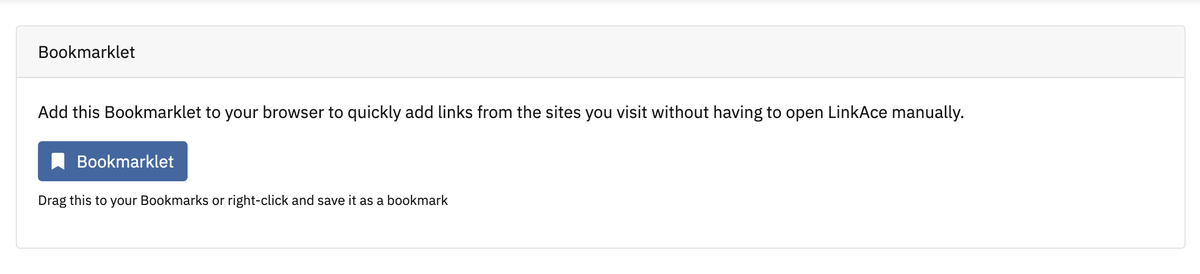
- Open your LinkAce user settings.
- Find the Bookmarklet section at the top.
- Make sure your browser bookmarks bar is visible.
- Drag the Bookmarklet button to the bookmarks bar.
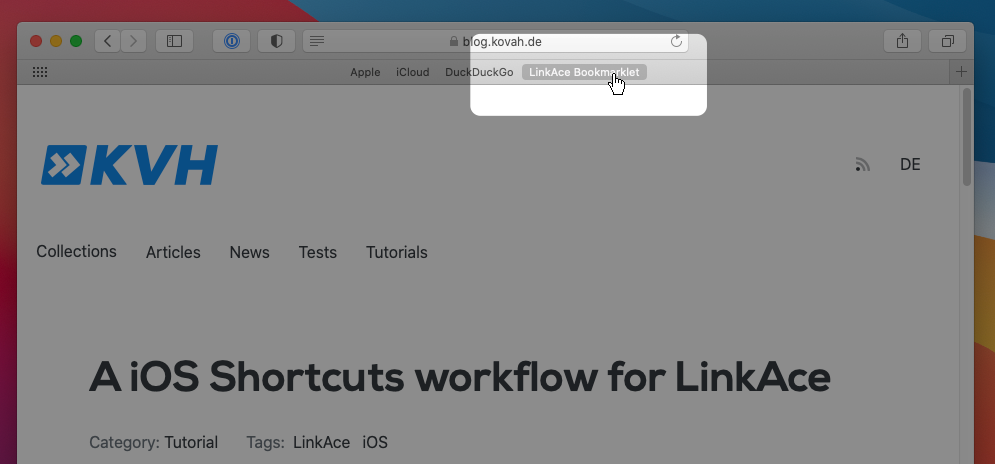
If dragging does not work, check whether your browser or mobile browser supports bookmarklets. Some mobile browsers restrict JavaScript bookmarks.
Save a Page With the Bookmarklet
- Open the page you want to save.
- Click the Bookmarklet in your bookmarks bar.
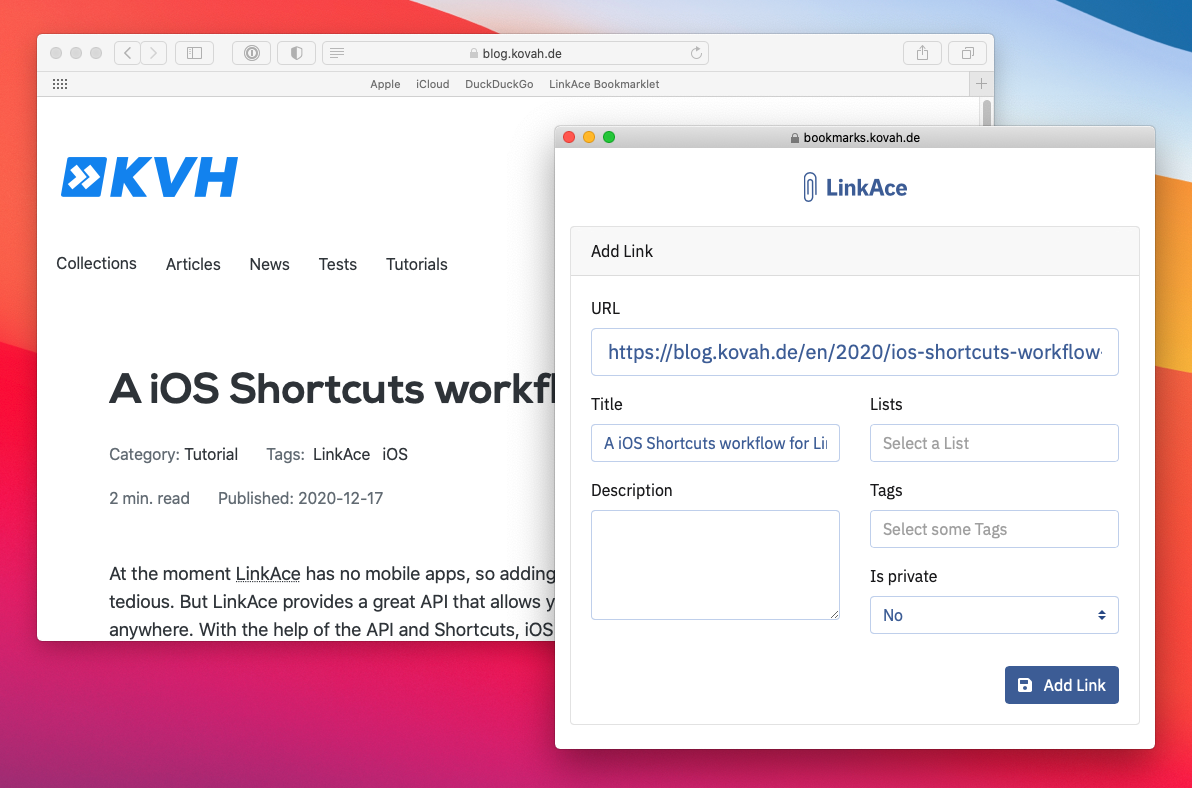
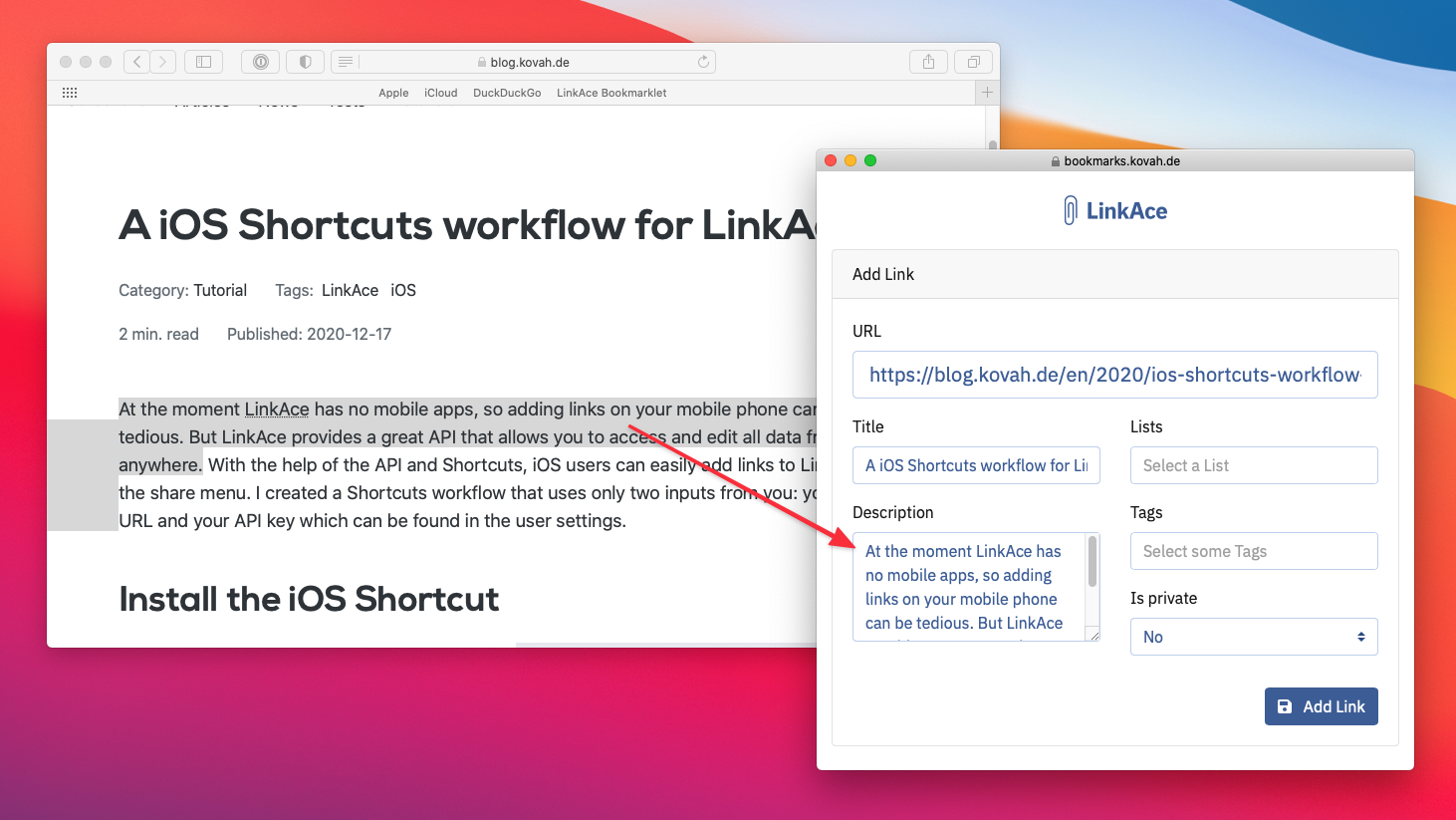
- LinkAce opens a small window with the link form.
- Review the pre-filled URL and title.
- Add lists, tags, description, and visibility if needed.
- Save the link.
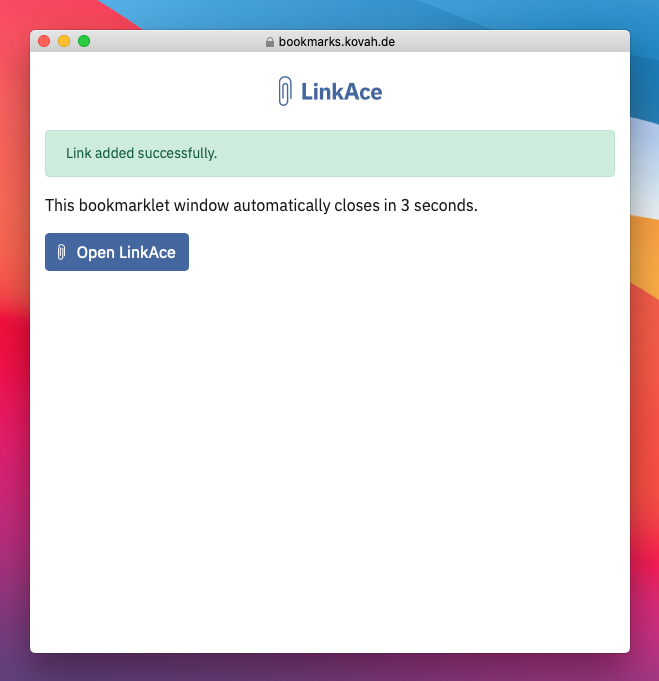
After saving, the Bookmarklet window closes itself after a few seconds. You can also use the shown button to open LinkAce.
Use Selected Text as the Description
Before clicking the Bookmarklet, select text on the page. LinkAce uses the selected text as the link description.
Common Problems
- The login page appears: log in to LinkAce, then try the Bookmarklet again.
- Nothing opens: allow popups for your LinkAce domain and check whether the browser supports bookmarklets.
- The form is missing title or description: the website may block metadata access. You can fill the fields manually.
