Lists group links into collections. Use lists for curated sets such as “Research for Project A”, “Public Reading List”, or “Tools for the Team”.
Lists are different from tags: a list is usually a deliberate collection, while tags are labels that can describe many unrelated links.
View Lists
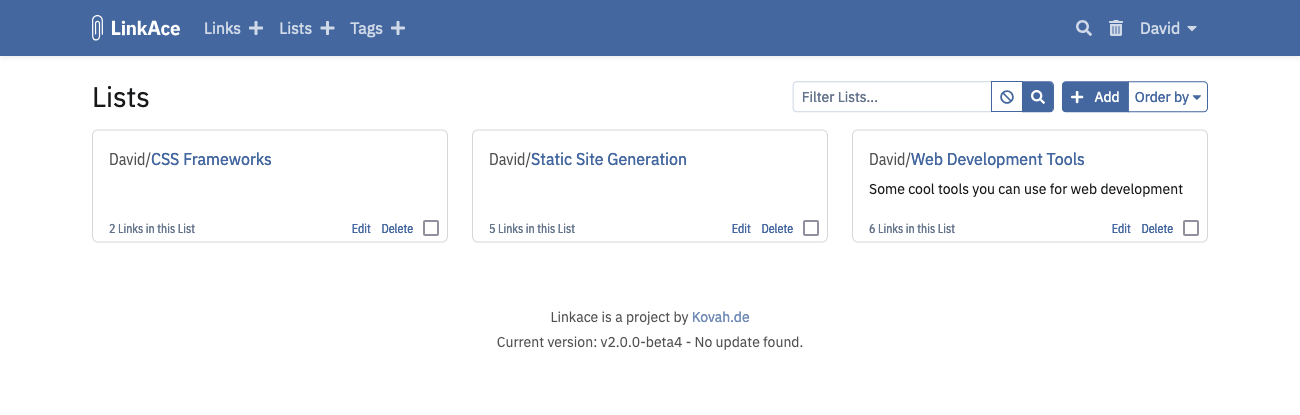
The list overview shows all lists with their description and link count.
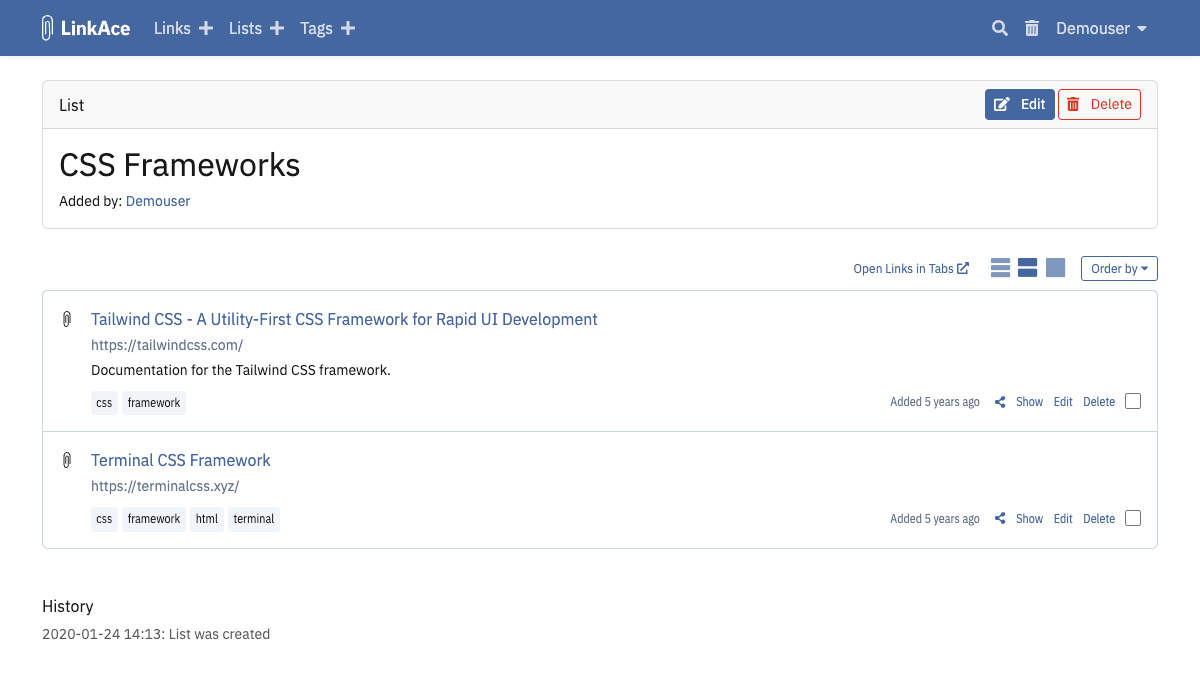
Open a list to see the links assigned to it. The link table can be sorted from the table header.
Create a List
You can create lists in two places:
- from the Lists menu,
- directly from the link form while adding or editing a link.
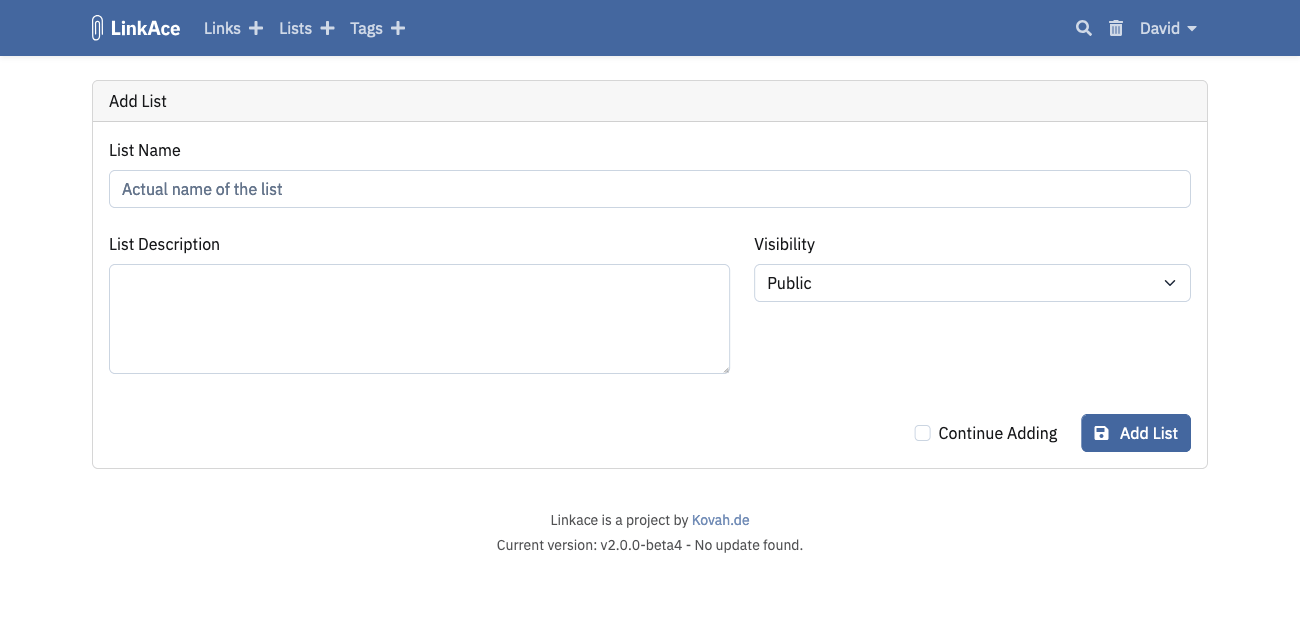
Use the dedicated list form when you want to set a description or visibility immediately.
List names cannot contain commas.
Add Links to a List
Open a link and edit its Lists field, or add a list while creating the link. Existing lists are suggested while typing.
For several links at once, use bulk editing on the link overview. See Links.
Share a List
List visibility controls who can see the list itself. The links inside the list also need compatible visibility.
- Private lists are visible only to you.
- Internal lists are visible to logged-in users.
- Public lists can be visible to guests when guest access is enabled.
See System Settings for guest access.
Common Problems
- A list is visible but some links are missing: check the visibility of the links inside the list.
- Guests cannot see a public list: confirm guest access is enabled.
- A list name cannot be saved: remove commas from the list name.
